Building your own website is now far easier than it was a few years ago, and WordPress is one of the most popular ways to do it. If you're looking for how to build a website with WordPress from scratch, this guide walks through it step by step — from choosing the right platform, setting up a domain and hosting, to publishing your website's first page.
WordPress is one of the most popular Content Management Systems (CMS) in the world, used by millions of websites — from personal blogs, portfolios, company profiles, to large-scale online stores. Its popularity isn't without reason: WordPress is relatively easy to learn, has a huge ecosystem of themes and plugins, and is backed by a large global community.
If this is the first time you've heard the term CMS, it's worth first reading a general overview at what web development is to understand the broader context before getting into practice. After that, let's discuss how to build a website on WordPress in more detail.
Table of Contents
- WordPress.com vs WordPress.org: Don't Pick the Wrong One
- Preparation Before Building a Website on WordPress
- Steps to Build a Website with WordPress
- 1. Buy a Domain and Hosting That Supports WordPress
- 2. Install WordPress Through the Hosting Panel
- 3. Log In to the WordPress Admin Dashboard
- 4. Choose and Activate a Theme
- 5. Install the Basic Plugins You Need
- 6. Create the Core Pages
- 7. Set Up the Navigation Menu
- 8. Publish Pages One by One
- Extra Tips for a More Optimized WordPress Website
- Advantages of Using WordPress
- Challenges to Anticipate
- WordPress for Different Types of Websites
- WordPress vs. Other Website Builder Platforms
- Frequently Asked Questions
- Conclusion
WordPress.com vs WordPress.org: Don't Pick the Wrong One
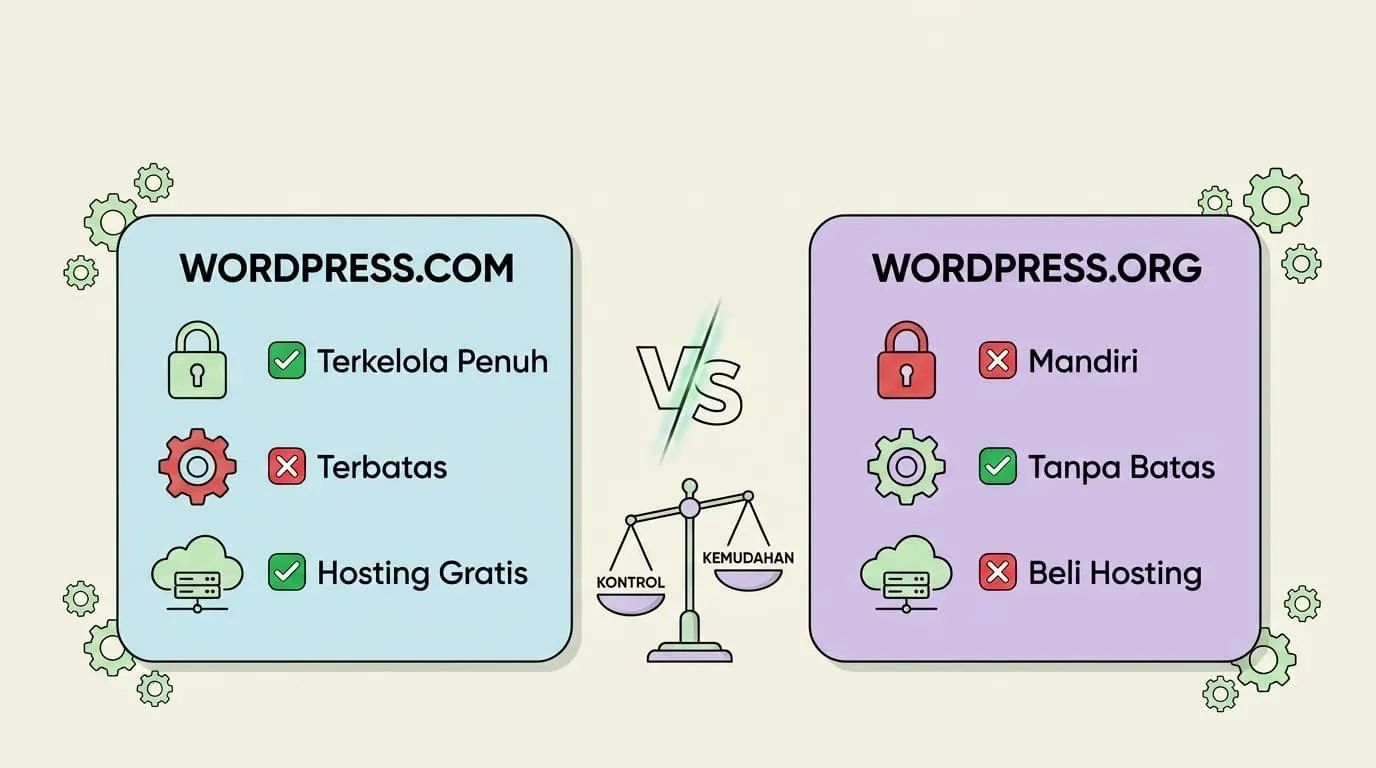
One of the most common points of confusion for beginners is the difference between WordPress.com and WordPress.org. Both share the name "WordPress", but how they work and how flexible they are is very different.
WordPress.com is a managed hosting service with free and paid tiers. All the technical work — servers, basic security, system updates — is already handled by WordPress.com. It's a good fit for beginners who want to get online quickly without the hassle of managing hosting themselves, but customization is limited — especially on the free plan.
WordPress.org is an open-source CMS software you can download for free and install on any hosting. You get full control: free to choose themes, plugins, even edit the source code. The trade-off is you're also fully responsible for the hosting, domain, security, and maintenance of the website.
Aspect | WordPress.org (self-hosted) | |
|---|---|---|
Cost | Free (limited) – paid | Free software, but needs domain & hosting |
Theme/plugin control | Limited | Fully free |
Best for | Personal blogs, beginners | Businesses, online stores, professional websites |
Customization | Low–medium | High |
Technical responsibility | Handled by provider | Borne by the website owner |
For serious business needs, WordPress.org (self-hosted) is generally recommended because of its customization freedom and scalability. This guide will focus on how to build a website with WordPress.org, since this is the most widely used path for business websites, professional portfolios, and online stores.
Preparation Before Building a Website on WordPress
Before getting into installation, there are a few things you should prepare first so the process goes smoothly:
- Domain name — your website's address, for example yourbusiness.com. Choose something short, relevant to your brand, and easy to remember.
- Hosting — where your website's files and database are stored. Make sure the hosting plan you choose supports the latest PHP version and one-click WordPress installation.
- Website goal — is it for a blog, company profile, portfolio, or online store? This determines which themes and plugins you'll need later.
- Basic content — logo, text about your business/yourself, a list of services or products, and contact information. Preparing this upfront speeds up filling in the pages later.
If you're not yet sure how much budget to set aside for domain, hosting, and development, you can first check the overview at the cost of building a business website in Indonesia.
Steps to Build a Website with WordPress
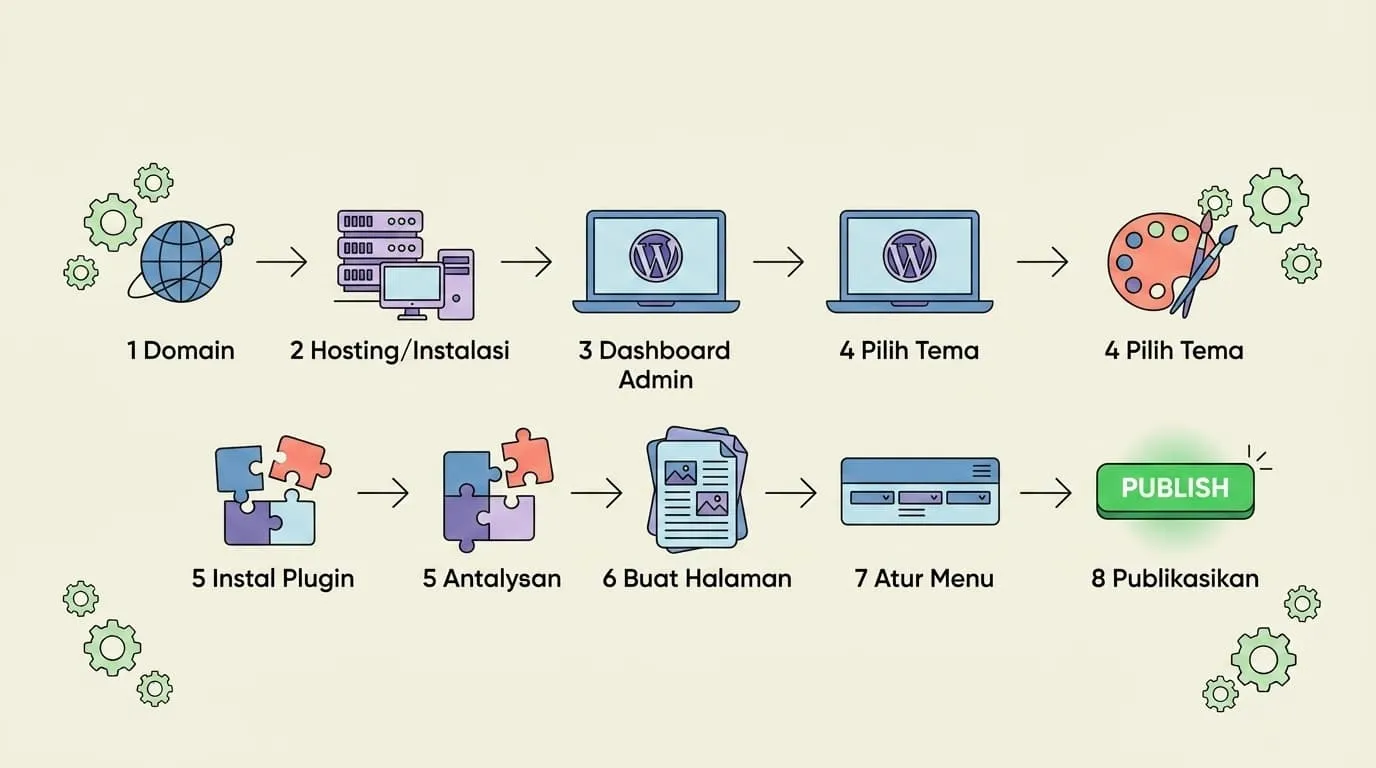
Here's the complete process for how to build a website with WordPress, from buying a domain to a website that's ready to publish.
1. Buy a Domain and Hosting That Supports WordPress
The first step is buying a domain name and a hosting plan. Most hosting providers now offer a one-click WordPress install feature, so you don't need to upload files manually. Also make sure the hosting you choose has an active SSL certificate, since it matters for both security and SEO.
2. Install WordPress Through the Hosting Panel
Once your domain and hosting are active, log in to the hosting control panel (usually cPanel or something similar), then look for an "Install WordPress" or "WordPress Installer" feature. Follow the installation wizard: fill in your website name, admin username, and password. This process usually takes just a few minutes.
3. Log In to the WordPress Admin Dashboard
Once installation is complete, you can access the admin dashboard at yourdomain.com/wp-admin, then log in with the username and password you created earlier. This dashboard is the control center for your entire website — from here you manage themes, plugins, pages, and other settings.
4. Choose and Activate a Theme
The theme determines your website's visual look. Go to the Appearance > Themes menu, then choose a theme that fits your needs — for example a portfolio, company profile, or online store theme. WordPress offers thousands of free and premium themes you can activate right away and customize the colors, layout, and typography of.
5. Install the Basic Plugins You Need
Plugins add new functionality to your website without writing code from scratch. A few basic plugins usually worth installing right away:
- SEO plugin — helps optimize meta titles, descriptions, and the sitemap.
- Security plugin — protects against brute-force attacks and malware.
- Caching plugin — speeds up your website's load time.
- Backup plugin — makes recovery easier if something goes wrong.
6. Create the Core Pages
Every professional website generally needs the following core pages:
- Home — visitors' first impression of your website.
- About — a short story about your business or yourself.
- Services/Products — details of what you offer.
- Contact — how to reach you, can include a contact form.
7. Set Up the Navigation Menu
After the core pages are created, arrange the order and structure of the navigation menu via the Appearance > Menus menu. Make sure the navigation flow is easy for visitors to follow — the common order is usually Home, About, Services, Blog (if any), then Contact.
8. Publish Pages One by One
Once each page's content is ready — text, images, and layout all set — click the Publish button. You don't have to wait until every page is finished at once; publish gradually while continuing to refine the content.
Extra Tips for a More Optimized WordPress Website
Beyond the eight steps above, there are a few things you shouldn't skip so your website isn't just "done", but actually functions well:
- Optimize load speed. Use compressed images and avoid too many unnecessary plugins, since these affect both visitor experience and search engine ranking.
- Make sure the display is responsive on mobile. Most website visitors now access it via smartphone, so the theme you choose needs to look clean across different screen sizes.
- Set up SEO-friendly permalinks. Under Settings > Permalinks, choose a clean URL structure, for example based on the page/post name instead of random numbers.
- Update WordPress, your theme, and plugins regularly. Regular updates matter for closing newly discovered security gaps.
Advantages of Using WordPress
There are a few reasons WordPress remains a top choice for building websites, for beginners and professional developers alike:
- Thousands of themes and plugins, free and paid, for almost any need — from a simple blog to a complex membership system.
- A large community, so it's easy to find tutorials, discussion forums, or technical help if you run into problems.
- Flexible, usable for blogs, online stores (with the WooCommerce plugin), portfolios, all the way to large-scale corporate websites.
- Solid SEO foundations, especially with the help of popular SEO plugins that make on-page optimization easier.
- Scalable, the website can grow over time, from a simple company profile into a more complex business platform.
Challenges to Anticipate
Behind all its advantages, self-hosted WordPress also has a few challenges worth being aware of from the start:
- Requires a bit of technical knowledge compared to a typical drag-and-drop website builder — you need to understand the basics of hosting, domains, and CMS settings.
- Regular updates for WordPress core, themes, and plugins must be done yourself (or with the help of a plugin) to keep the site secure.
- Security and backups become the website owner's responsibility, unlike a managed platform like WordPress.com.
- Too many plugins that conflict with each other can slow down the site or even cause errors.
If this process feels like too much or you don't have enough time to handle it yourself, considering a website development service experienced with WordPress can be a more time-efficient solution with a better end result. Before choosing a provider, it's worth first reading how to choose a professional website development service so you don't pick the wrong vendor.
WordPress gives you great freedom to grow over time — but that freedom also comes with the responsibility of managing it yourself, unless you delegate it to someone experienced.
WordPress for Different Types of Websites
One of WordPress's strengths is its flexibility across different kinds of website needs:
- Company profile — presenting your business profile, services, and company portfolio professionally. If you need help structuring the content, you can check our company profile website development service.
- Online store — with the WooCommerce plugin added, WordPress can turn into a full e-commerce platform with a payment system and product management. Also check out our online store website development service if you want help from start to finish.
- Small business websites — many small businesses use WordPress because it's relatively affordable while still looking professional; there's the website development service for small businesses option for those who want a faster process.
- Blogs and personal portfolios — WordPress's built-in structure was originally designed for blogging, so it's a great fit for publishing content regularly.
WordPress vs. Other Website Builder Platforms
Besides WordPress, there are a few alternative website-building platforms you may have already heard of, like Google Sites or other free website builders. If you want a simple website at zero cost and don't need much customization, you can read a comparison at how to build a website on Google Sites or how to build a free website.
But for long-term needs — especially if the website will become a core business asset — WordPress still has the edge in flexibility, SEO capability, and scalability over most free website builders.
Frequently Asked Questions
Is WordPress free? The WordPress.org software is free, but you still need to pay for domain and hosting to run it. The total monthly cost is usually far more affordable than building a website from scratch without a CMS.
Is WordPress suitable for an online store? Very suitable, especially with the WooCommerce plugin, which adds full e-commerce features to your WordPress site — from a product catalog and shopping cart to payment integration.
Do I need to know how to code to use WordPress? Not for basic use. Many themes and plugins can be configured through a visual interface without writing a single line of code. Coding knowledge is only needed for advanced customization.
How long does it take to learn WordPress well? For basic use — managing content, switching themes, installing plugins — it can usually be picked up within a few days. For advanced customization like child themes or API integrations, it usually takes longer to learn.
Is the process of building a website on WordPress the same for every type of website? The basic principle is the same — install WordPress, choose a theme, set up pages, and publish. The difference usually comes down to which additional plugins you use, like WooCommerce for an online store or a booking plugin for a service website.
Conclusion
Building a website with WordPress isn't actually a complicated process if you follow the steps in order: starting with choosing between WordPress.com or WordPress.org, buying a domain and hosting, installing WordPress, choosing a theme, installing basic plugins, all the way to creating and publishing the core pages. What actually takes time usually isn't the technical process, but staying consistent with building content and keeping the website up to date.
If you want faster, professional results without having to learn all the technical details yourself, considering help from a website development service experienced with WordPress can be a more practical choice — especially if this website will be the main face of your business in the digital world.



Comments
Got a question or feedback? Leave a comment!