Google Sites is one of the easiest ways to have a website at no cost and with no coding required — great for personal portfolios, event pages, or small projects that need to go live quickly. If you're looking for how to build a website on Google Sites truly from scratch, this guide will walk you through it step by step until your website is actually live.
This article is part of our complete guide series — if you want to compare other options before deciding, read our main how to build a website guide, which covers every method from scratch, from website builders, WordPress, manual coding, to AI assistance.
Table of Contents
What Is Google Sites?
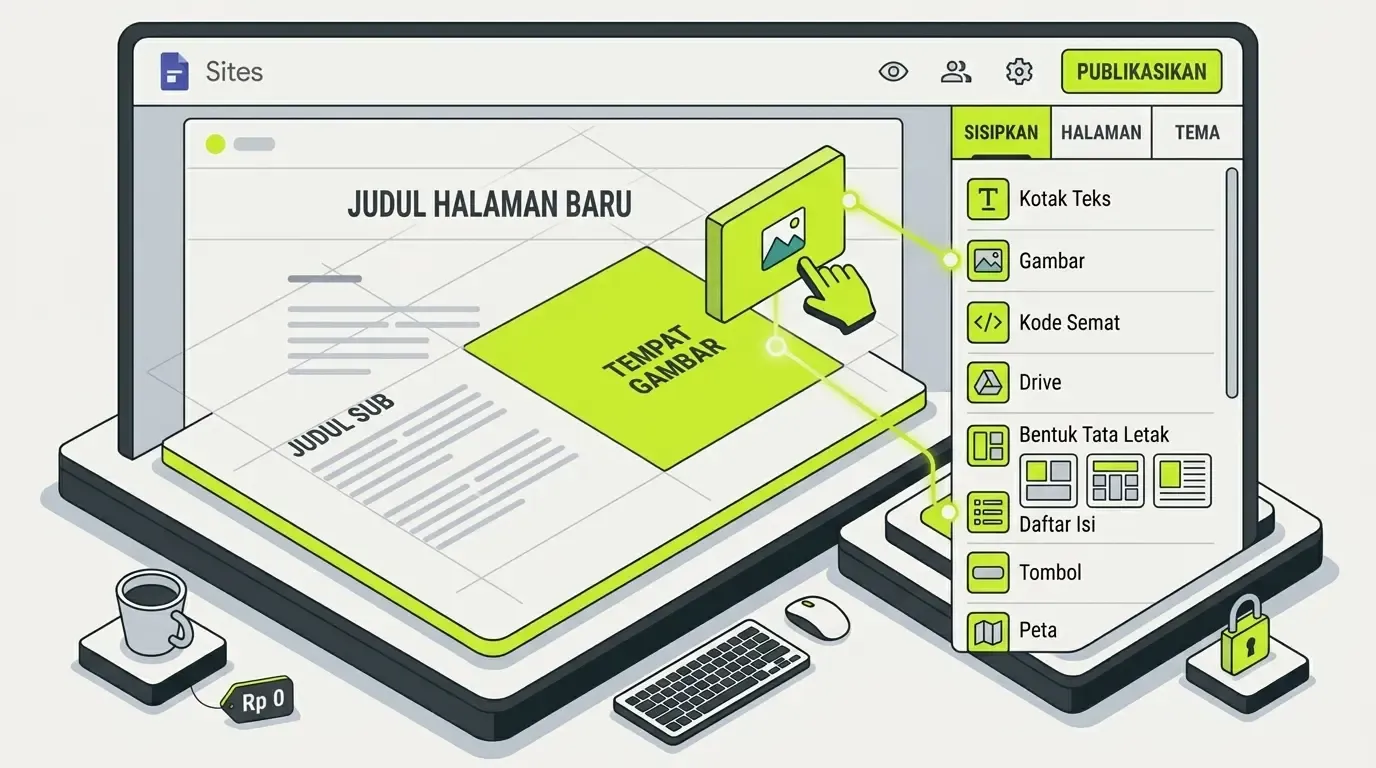
Google Sites is a free website-building tool from Google, directly integrated with your Google account (Drive, Docs, Calendar, etc). Its interface is simple with a drag-and-drop system, making it a good fit for complete beginners who've never built a website before.
Because it's directly connected to the Google ecosystem, this platform is often the first answer when people look for how to build a website on Google — you don't need to sign up for a new account, just use the Gmail account you already have, and hosting is automatically included at no extra cost.
Steps to Build a Website on Google Sites
Here's the complete process, from start to your website officially going live:
- Go to sites.google.com and sign in with your Google account
- Click the add (+) button to create a new site
- Name your site at the top of the page
- Choose a layout section from the panel on the right (text, image, embed)
- Build out the content to fit your needs — add new pages via the "Pages" menu in the right panel
- Adjust the color theme via the "Theme" menu
- Click "Publish" in the top-right corner, then set your web address
These seven steps can usually be finished in under an hour for a simple website with 3-5 pages. This answers a question that comes up often: how to build a simple website using Google Sites — the answer: no technical skills needed, just patience putting the content together.
Tips to Speed Up the Process
- Prepare text and images in Google Drive first before you start building pages, so you're not going back and forth looking for files
- Use a built-in theme first before experimenting with color customization, to keep the look consistent
- Take advantage of the preview feature (the eye icon in the top-right corner) to check the look before actually publishing
- Plan out the page structure on paper or in notes first, then move it into the editor — this avoids pages turning messy midway through
Features You Can Take Advantage Of
Despite being simple, Google Sites has a few genuinely useful features, especially because of its integration with other Google products:
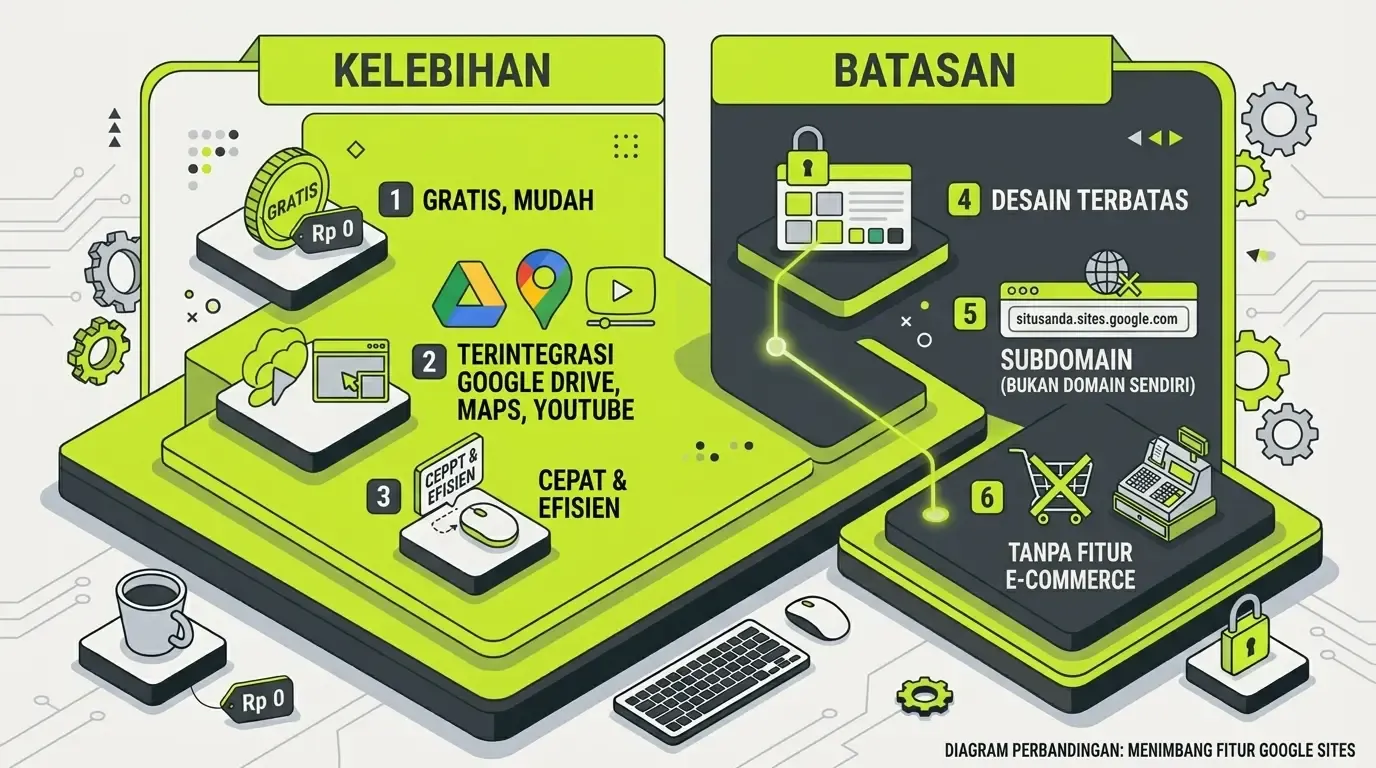
- Embed Google Docs, Sheets, or Slides directly into a page — great for showing reports or schedules that always update automatically
- Embed a Google Maps map for your business location, making it easy for visitors to find your physical address
- Embed a YouTube video directly with no manual embed code needed
- Automatic integration with Google Drive for images, so you don't need to re-upload files already stored in Drive
These features make Google Sites flexible enough for needs like event information pages, internal project documentation, or a portfolio that shows off several file types at once.
Limitations of Google Sites
Google Sites is very easy to use, but its design options are limited compared to other platforms, and the default address is still a subdomain (sites.google.com/...) unless you connect a custom domain separately.
A few other limitations to know about:
- Layout customization is far more limited compared to a website builder like Wix or Canva
- No built-in shopping cart or payment system
- Hard to add animations or complex interactions
- SEO structure is simpler compared to a CMS like WordPress
For more serious business needs — especially ones requiring a more custom look or extra features — consider other options in our how to build a website guide, which covers a full comparison between website builders, WordPress, and manual coding.
Google Sites is best suited for needs that require going live quickly and simply — not for business websites that rely on a highly custom look or high performance. If your needs are heading that direction, it's worth first understanding what web development is to get a sense of what features need to be custom-built, beyond what a free platform like this can offer.
When Is Google Sites Enough, and When Should You Upgrade?
Google Sites is enough for the following needs:
- Personal portfolios or online CVs
- Event or community information pages
- Internal team project documentation
- Simple landing pages for validating an early idea
But if your needs already include any of the following, you should consider another platform or professional help:
- Need an online store with a shopping cart system — consider our online store website development service
- Need a company profile look that's more convincing for large clients — check our company profile website development service
- As a small business owner who wants to level up but still has a limited budget — check our website development service for small businesses or our affordable website development service
- Want to understand cost estimates before deciding to upgrade — read the cost of building a business website in Indonesia
- Ready to bring in a professional team — first learn how to choose a professional website development service so the outcome matches your expectations
Frequently Asked Questions
Is Google Sites really free? Yes, completely free as long as you have a Google account, hosting included.
Can you connect your own domain to Google Sites? Yes, through the custom domain settings in the Publish menu, but you still need to buy the domain separately from a domain provider.
Is Google Sites suitable for an online store? Not really — Google Sites doesn't have a shopping cart or built-in payment integration adequate for e-commerce needs. For this, consider another platform or our online store website development service.
Can it be accessed and edited from a phone? Yes, though editing is most comfortable on a desktop/laptop browser, especially for arranging layouts and building multiple pages at once.
What's the difference between Google Sites and other website builders like Wix or Canva? Google Sites is simpler and completely free, but its design options are more limited. Wix and Canva generally offer more varied templates and deeper customization options, though some features remain paid.
Conclusion
Google Sites is a great choice if you need a simple website that goes live quickly, is completely free, and requires no technical skills. Its integration with Google Drive, Maps, and YouTube makes it flexible enough for personal needs and small projects alike.
But once your needs grow — your own domain, a more custom design, or business features like an online store — Google Sites will start to feel limited. At that point, you can consider another platform or bring in a professional service that can tailor to your business's specific needs.



Comments
Got a question or feedback? Leave a comment!