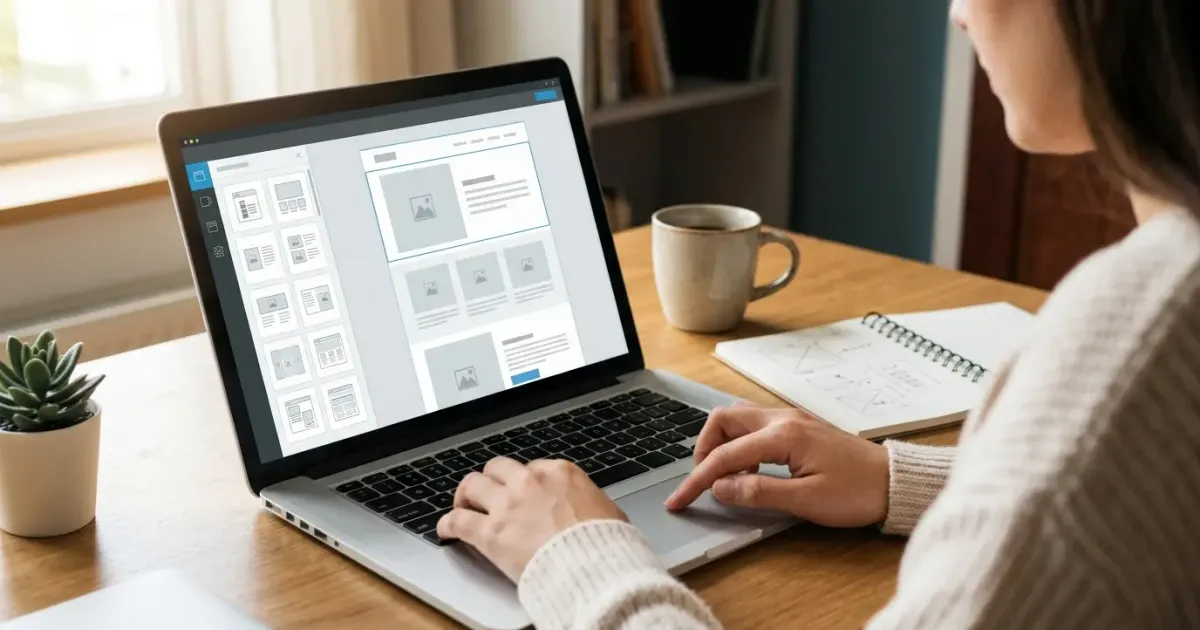
Canva isn't just for graphic design — the platform also has a feature for building a website directly from the designs you create. It's a great fit if you're already used to Canva and want a website with a strong visual look without learning a new tool. If you're looking for how to build a website on Canva from start to live, this guide walks you through it step by step.
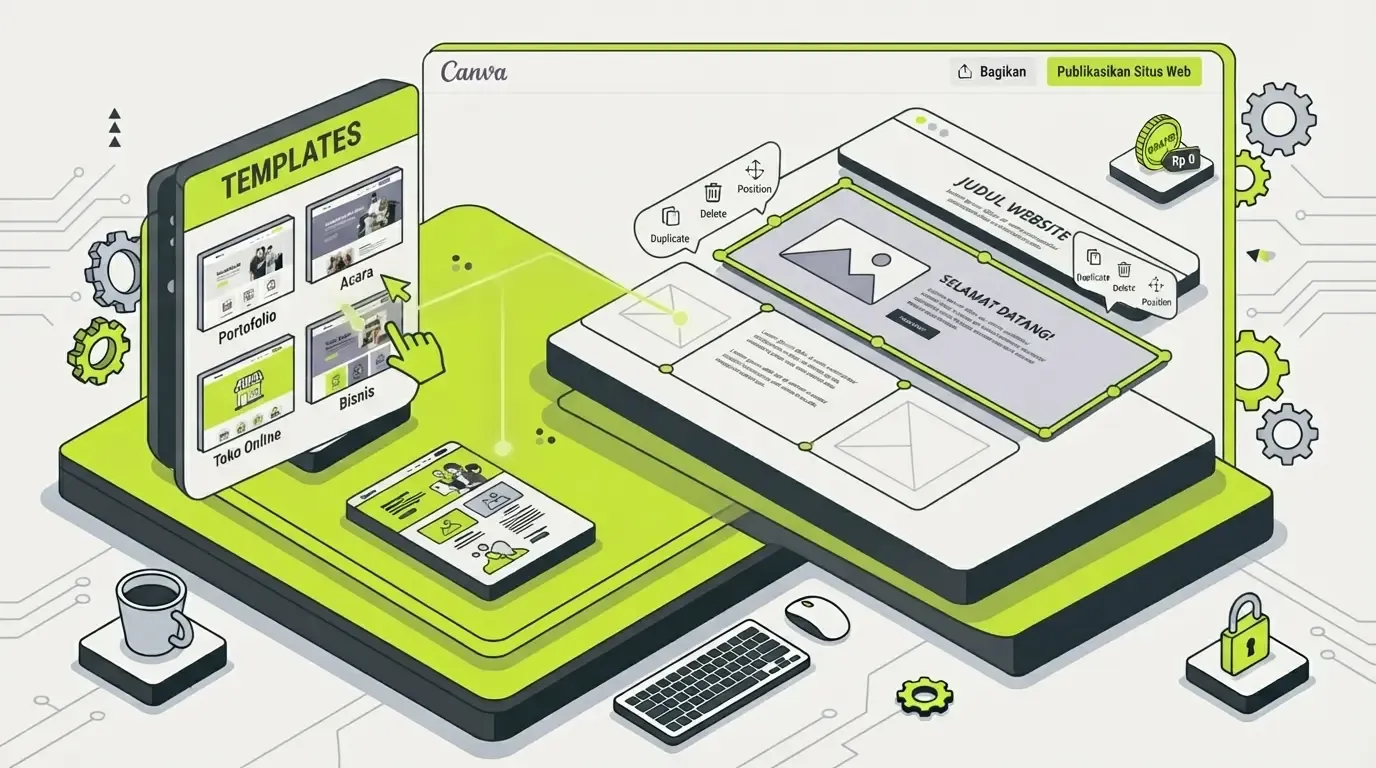
This article is part of our complete guide series — if you want to compare other options before deciding, read our main how to build a website guide, which covers every method from scratch, from website builders, WordPress, manual coding, to AI assistance.
Table of Contents
- Why Choose Canva to Build a Website?
- Steps to Build a Website on Canva
- How to Build a Portfolio Website on Canva
- Advantages of Building a Website on Canva
- Limitations You Should Know About
- Tips for Making Your Canva Website Look Professional
- When Is Canva Enough, and When Should You Upgrade?
- Frequently Asked Questions
- Conclusion
Why Choose Canva to Build a Website?
Canva's main strength is on the visual side. If you're already used to designing social media feeds, posters, or presentations in Canva, moving into website building feels very natural — there's no new tool to learn from scratch. This is why many people look for how to build a website on Canva compared to other platforms: the workflow feels familiar and the result looks polished right away thanks to consistently well-made templates.
Steps to Build a Website on Canva
Here's the complete process, from an empty account to an officially live website:
- Sign in to your Canva account (or sign up for free if you don't have one)
- Search for a "Website" template in the search box, or start from a blank design
- Choose a template that fits your needs — portfolio, landing page, or business profile
- Adjust the text, images, and colors to match your brand
- Add new pages via the left-side panel if you need more than one page
- Click "Share" then choose "Website" to publish
- Choose a free subdomain from Canva, or connect your own domain (a paid feature)
This process can usually be finished in 1-2 hours for a simple website with a few pages, depending on how much detail you put into customizing the template design.
How to Build a Portfolio Website on Canva
One of the most popular uses of Canva Websites is for how to build a portfolio website on Canva. Here are some specific tips:
- Choose a template with a gallery grid that's clean for showcasing your work visually
- Order your work starting with the strongest/most representative pieces at the top
- Add a short description to each piece, don't leave just an image with no context
- Include an "About Me" page and how to get in touch in the main navigation menu
Since Canva is built for visual needs, a portfolio is one of the website types that benefits most from this platform's strengths.
Advantages of Building a Website on Canva
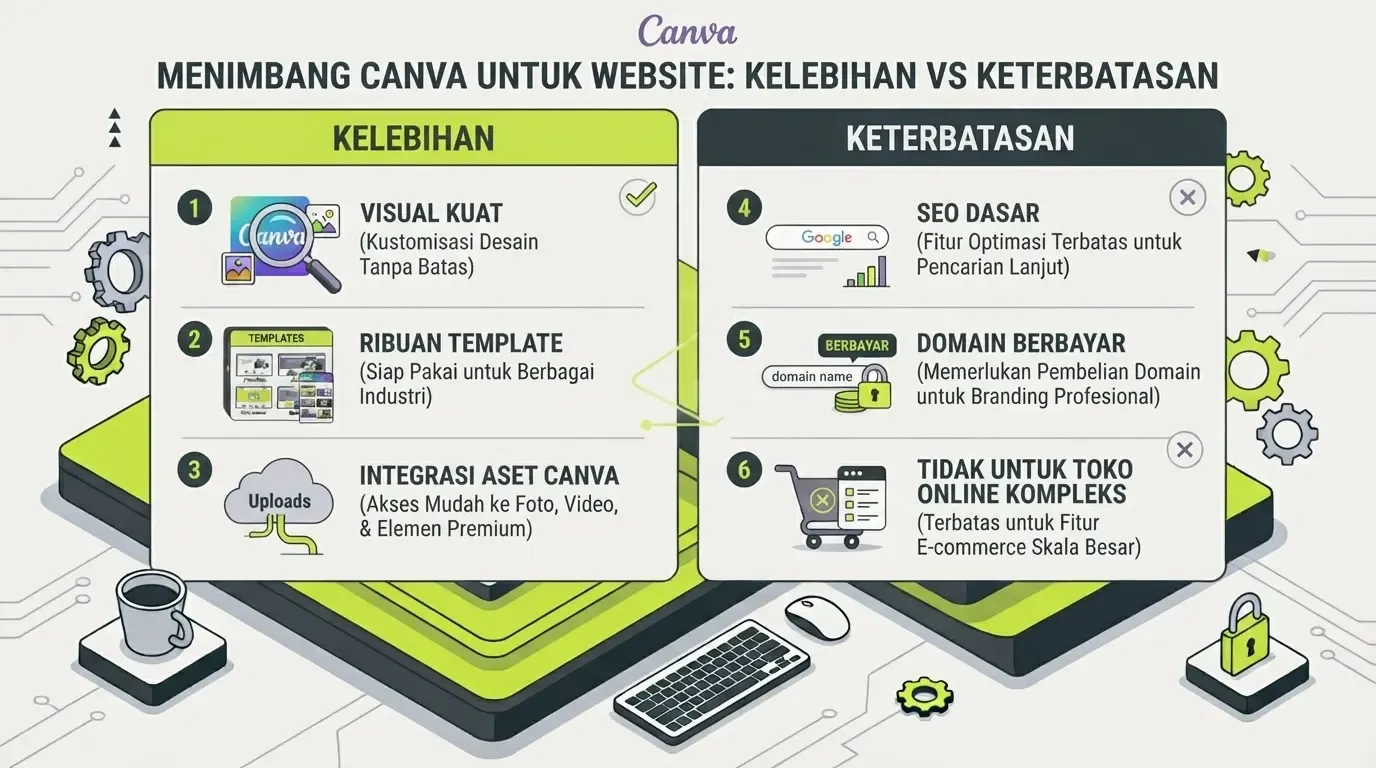
- Highly visual — great for anyone more comfortable working with images than code or text
- Thousands of ready-made templates with consistent design quality
- Directly integrated with your other Canva design assets (logos, social media feeds, etc.)
This integration with other Canva assets is why many people choose how to build a website with Canva — because a logo, color palette, and design elements you've already made in Canva can be reused directly without manual exporting and importing.
Limitations You Should Know About
A Canva website works best for simple static pages — not for complex functional needs like an online store with many products or a booking system.
A few other limitations:
- SEO features are still basic compared to a CMS like WordPress
- Custom domains and some advanced features require Canva Pro (paid)
- Not fully flexible for complex interactive features
- Page structure is more limited compared to a dedicated website builder like Wix
For needs like that, consider other options in our how to build a website guide, or a website development service if you need more polished results tailored to your business's specific needs.
Canva is the best fit when your main strength is visual, and the website's needs are genuinely simple and appearance-focused.
Tips for Making Your Canva Website Look Professional
- Be consistent with font choices — a maximum of 2 fonts across the whole site
- Use a color palette that matches your logo/branding
- Don't overload it with decorative elements that distract from the main content
- Check the mobile view before publishing, since most visitors will access it from a phone
- Use high-resolution photos — Canva relies heavily on visuals, so blurry images will stand out badly
When Is Canva Enough, and When Should You Upgrade?
Canva Websites is enough for the following needs:
- Visual portfolios (designers, photographers, illustrators)
- Simple landing pages for promotions or events
- Small business profiles that don't yet need complex features
But if your needs already include the following, you should consider another platform or professional help:
- Need an online store with many products and a full checkout system — consider our online store website development service
- Need a company profile look that's more convincing for large clients — check our company profile website development service
- As a small business owner who wants to level up but still has a limited budget — check our website development service for small businesses or our affordable website development service
- Need custom features or system integrations — it's worth first understanding what web development is to see the difference between "visual appearance" and the "functional system" behind it
- Want to estimate costs before deciding to upgrade — read the cost of building a business website in Indonesia
- Ready to bring in a professional team — first learn how to choose a professional website development service so the outcome matches your expectations
Frequently Asked Questions
Is a Canva website completely free? The basic features are free, but a custom domain and some advanced features require Canva Pro (paid).
Can a Canva website be optimized for SEO? To a limited extent — SEO features on Canva Websites are still basic compared to platforms like WordPress.
Can you add an online store to a Canva website? There's a basic feature for selling simple products, but it's not as complete as a dedicated e-commerce platform. For more serious online store needs, consider our online store website development service.
Is it suitable for a long-term business website? It's suitable for early stages or simple needs. For a business planning significant growth, consider a platform with more flexibility or bring in a professional service from the start.
What's the difference between building a website on Canva versus Google Sites? Canva has the edge on visuals and ready-made templates, while Google Sites has the edge on integration with Google Drive, Maps, and YouTube. Both are free and require no coding, so the choice comes down to your needs and working style.
Conclusion
Canva is a great choice if your main strength is visual and you want an attractive-looking website without learning a new tool. The process is fast, the templates are high-quality, and it integrates directly with other Canva design assets you may already have.
But once your needs grow — more mature SEO, an online store with many products, or more complex business features — Canva will start to feel limited. At that point, consider another platform or a professional service that can tailor to your business's specific needs.



Comments
Got a question or feedback? Leave a comment!